
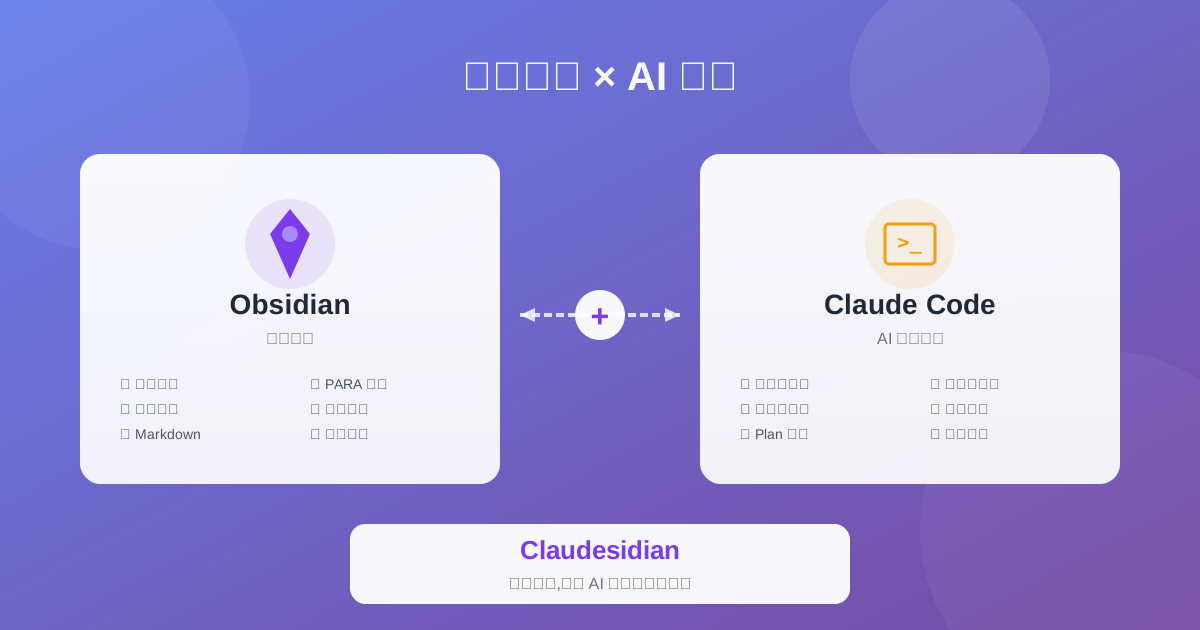
Claudesidian: Transform Obsidian into an AI-Powered Second Brain
If you're using both Obsidian for note-taking and Claude Code for coding, here's great news:
An open-source project called Claudesidian has perfectly integrated these two tools. Not just "using them together," but a complete solution with folder structure, workflows, custom commands, and automation scripts.
1300+ Stars, MIT licensed, ready to use out of the box.
This article shows you what Claudesidian is and how to use it to build a true "AI-powered second brain."
What is Claudesidian?
In One Sentence
Claudesidian = Pre-configured Obsidian Vault + Claude Code Integration Kit
It's not a plugin, but a complete Obsidian vault template optimized specifically for Claude Code.
Core Features
1. Folder Structure Based on PARA Method
claudesidian/
├── 00_Inbox/           # Inbox: Quick capture
├── 01_Projects/        # Projects: Time-bound tasks
├── 02_Areas/           # Areas: Ongoing responsibilities
├── 03_Resources/       # Resources: Reference materials
├── 04_Archive/         # Archive: Completed items
├── 05_Attachments/     # Attachments: Images, PDFs, etc.
└── 06_Metadata/        # Metadata: Templates and docs
The PARA method (Projects, Areas, Resources, Archive) is a proven knowledge management system, and Claudesidian has it built in.
2. Pre-configured Claude Code Commands
Run directly in Claude Code:
/thinking-partner- AI thinking partner that helps you explore ideas through questions/inbox-processor- Automatically organize inbox content/research-assistant- Deep research assistant/daily-review- Daily review and reflection/weekly-synthesis- Weekly summary and pattern recognition/de-ai-ify- Remove AI writing patterns to make content more natural
3. Interactive Setup Wizard
After running /init-bootstrap, Claude Code will:
- Analyze your existing Obsidian vault structure
- Import your old notes (safely moved to
OLD_VAULT/) - Generate personalized config based on your public work (GitHub, Twitter, etc.)
- Ask about your workflow preferences
- Automatically create a customized
CLAUDE.mdconfig file
4. Optional Advanced Integrations
Gemini Vision MCP: Claude Code can directly "see" images and PDFs
- No need to describe screenshots, AI sees them directly
- Batch process documents
- Auto-generate filenames based on image content
Firecrawl Web Research: Automatically scrape and save full web content to vault
- Not summaries, but complete original text
- Batch scrape multiple URLs
- Convert to searchable Markdown
5. Automation Scripts
Built-in npm scripts:
npm run attachments:list        # List unprocessed attachments
npm run attachments:orphans     # Find unreferenced files
npm run vault:stats             # Show vault statistics
npm run firecrawl:scrape        # Scrape web pages to vault
Why Do You Need Claudesidian?
The Problem: Great Tools, Hard to Integrate
Using Obsidian Alone:
- Notes are well-written, but execution is manual
- Ideas are recorded, but implementation requires reorganization
Using Claude Code Alone:
- AI is powerful, but lacks structured knowledge input
- Have to re-describe context every time
What Claudesidian Solves:
- ✅ Obsidian notes directly become Claude Code input
- ✅ Claude Code can search and reference your entire knowledge base
- ✅ Complete workflow from idea capture to code implementation
- ✅ Automated daily tasks (organizing, reviewing, archiving)
Core Philosophy: Thinking Mode vs Writing Mode
Claudesidian emphasizes an important distinction:
Thinking Mode:
- AI helps you explore through questions
- Searches existing notes, makes connections
- Records insights and progress
- Goal: Deep understanding, no rush to output
Writing Mode:
- Generates content based on research
- Structures and edits
- Creates final deliverables
- Goal: High-quality output
Many people jump straight to writing mode when using AI, resulting in shallow output. Claudesidian's command system helps you think first, then create.
Quick Start
1. Get Claudesidian
Option A: Clone with Git
git clone https://github.com/heyitsnoah/claudesidian.git my-vault
cd my-vault
Option B: Download ZIP
- Visit the GitHub repository
- Click "Code" → "Download ZIP"
- Extract to your desired location
2. Run Setup Wizard
# Start Claude Code
claude

# Run setup wizard in Claude Code
/init-bootstrap
What the wizard does:
- Install dependencies - Auto npm install
- Disconnect from origin - Detach from claudesidian repo, make it yours
- Analyze existing structure - If you have an old Obsidian vault, analyzes patterns
- Safely import old notes - Moved to
OLD_VAULT/for reference - Research your public work - With permission, analyzes your GitHub, Twitter, etc.
- Ask workflow preferences - How do you use notes? What type of work?
- Generate personalized config - Creates
CLAUDE.mdtailored to you - Configure optional integrations - Gemini Vision, Firecrawl
- Initialize Git - Prepare for version control
3. Open in Obsidian (Optional but Recommended)
- Download Obsidian
- "Open folder as vault" → Select claudesidian directory
- Now you have both visual interface + CLI experience
4. First Session
Try in Claude Code:
I'm thinking about a new project on [topic].
I'm in thinking mode, not writing mode.
Please search my vault for any relevant notes,
then help me explore this topic by asking questions.
Or use pre-configured commands:
/thinking-partner    # Start thinking dialogue
/inbox-processor     # Organize inbox
/daily-review        # Daily review
Real-World Scenarios
Scenario 1: Explore Ideas with /thinking-partner
You quickly note in Obsidian:
# 00_Inbox/Idea - User Recommendation System.md

Want to add recommendation feature to product
- Based on user behavior
- Real-time recommendations
- Unsure: collaborative filtering or deep learning
Run in Claude Code:
/thinking-partner
Claude Code will:
Search your vault - Look for relevant notes
- Finds
03_Resources/Machine-Learning/collaborative-filtering-notes.md - Finds
01_Projects/last-year-recommendation/summary.md
- Finds
Start asking questions
- "What format is your user behavior data currently in?"
- "What's the response time requirement for real-time recommendations?"
- "Does the team have machine learning experience?"
Make connections
- "I see you did a similar project last year, what problems did you encounter?"
- "Your collaborative filtering notes mention cold start issues, is that a concern this time?"
Record progress
- Creates thinking log in
00_Inbox/ - Extracts key decision points
- Marks areas needing further research
- Creates thinking log in
Not giving direct answers, but helping you think deeply.
Scenario 2: Auto-organize with /inbox-processor
Your inbox is messy:
00_Inbox/
├── random-note.md
├── api-doc-links.md
├── bug-idea.md
├── book-notes-design-patterns.md
└── weekend-todos.md
Run:
/inbox-processor
Claude Code will:
- Read all inbox content
Analyze each note's nature
- "api-doc-links" → Project resource
- "bug-idea" → Task to handle
- "book-notes" → Knowledge resource
- "weekend-todos" → Personal area todo
Suggest organization
Suggested moves:
- api-doc-links.md → 01_Projects/current-project/Resources/
- bug-idea.md → 01_Projects/product-dev/Issues/
- book-notes-design-patterns.md → 03_Resources/Programming/Design-Patterns/
- weekend-todos.md → 02_Areas/Personal-Life/
Auto-move with consent
Clear inbox, keep it clean
Scenario 3: Deep Research with /research-assistant
You're doing technical selection:
# 01_Projects/new-project/tech-selection.md

Need to choose frontend framework
- React?
- Vue?
- Svelte?

Consider: team familiarity, ecosystem, performance, learning curve
Run:
/research-assistant

Topic: Frontend framework selection
Reference: 01_Projects/new-project/tech-selection.md
Claude Code will:
Search vault internal knowledge
- Find previous framework usage experience
- Find team skill records
- Find performance test results
Propose research plan
- Create comparison table framework
- List research points
- Provide information source suggestions
Assist information collection
- If Firecrawl configured, can scrape official docs
- Compare actual data from existing projects
- Summarize pros and cons
Generate research report
- Save to
01_Projects/new-project/research-reports/ - Include data, analysis, recommendations
- Facilitate future decisions
- Save to
Scenario 4: Process Screenshots with Gemini Vision
You have a bunch of UI screenshots to organize:
05_Attachments/
├── screenshot-1.png
├── screenshot-2.png
├── screenshot-3.png
└── ...
After configuring Gemini Vision, in Claude Code:
Please analyze all screenshots in 05_Attachments/
and auto-rename and categorize based on content.
Claude Code will:
Directly "see" each image
- screenshot-1.png → "Login page error message"
- screenshot-2.png → "Dashboard performance chart"
- screenshot-3.png → "Mobile responsive layout"
Auto-rename
screenshot-1.png → login-error-message.png
screenshot-2.png → dashboard-performance-chart.png
screenshot-3.png → mobile-responsive-layout.png
Categorize
05_Attachments/
├── UI-Bugs/
│   └── login-error-message.png
├── Performance/
│   └── dashboard-performance-chart.png
└── Mobile/
    └── mobile-responsive-layout.png
Generate documentation
- Create
03_Resources/UI-Issues.md - Auto-insert image references
- Add issue descriptions
- Create
No manual description needed, AI sees and understands images directly.
Scenario 5: Batch Save Research with Firecrawl
You're researching a tech topic and found 10 good articles:
Create URL list:
# urls.txt
https://example.com/article-1
https://example.com/article-2
https://example.com/article-3
...
Run batch scrape:
npm run firecrawl:batch -- urls.txt "03_Resources/Tech-Research"
Result:
- Full text scrape - Not summaries, complete articles
- Convert to Markdown - Searchable, editable
Auto-save
03_Resources/Tech-Research/
├── article-1.md
├── article-2.md
└── article-3.md
Permanent archive - Even if webpage deleted, you have full backup in vault
Then in Claude Code:
Please analyze all articles in 03_Resources/Tech-Research/
and summarize key points and common patterns.
Claude Code can search and analyze thousands of saved articles without context limits.
Customize Your Workflow
Create Custom Commands
Claudesidian provides /create-command for quick command creation.
Example: Create /code-reviewer command
/create-command
Claude Code asks:
- Command name?
code-reviewer - Command purpose? Review code, find potential issues
- How it works? Check code style, performance, security
Generated command file:
.claude/commands/code-reviewer.md:
You are a professional code reviewer.

## Tasks
- Check code style and best practices
- Identify potential performance issues
- Recognize security vulnerabilities
- Provide improvement suggestions

## Workflow
1. Read user-specified code files
2. Check item by item: functionality, performance, security, maintainability
3. Generate review report, save to project's Reviews/ directory
4. List priority-sorted improvement suggestions
Usage:
/code-reviewer

Please review: src/auth/login.ts
Upgrades and Maintenance
Get Latest Features
Claudesidian continuously updates with community contributions.
Check updates:
/upgrade check
Run upgrade:
/upgrade
Upgrade process:
- Create backup - Timestamped backup to
.backup/upgrade-[timestamp]/ - Show changes - Display diff file by file
- Confirm updates - You decide whether to accept each change
- Protect content - Never touches your notes (00-04 folders)
- Update system only - Commands, scripts, configs, etc.
Safety features:
- Complete backup
- Rollback capability
- File-level confirmation
- Progress tracking (
.upgrade-checklist.md)
Summary
Core Value of Claudesidian
1. Zero-Config Start
- No need to design folder structure from scratch
- No need to write Claude Code commands yourself
- Download and use, quick start
2. Best Practices Integrated
- PARA method (proven knowledge management system)
- Thinking mode vs writing mode (avoid shallow AI use)
- Automated workflows (reduce repetitive work)
3. Community-Driven
- 1300+ Stars, continuous updates
- Community contributes new commands and workflows
/upgradeone-click to get new features
4. Full Control
- MIT open source, modify as you wish
- Local-first, data on your hard drive
- Git version control, never lose anything
Who Is It For?
Best for:
- Developers, researchers, knowledge workers
- Already using or want to use Obsidian
- Want AI to truly understand your knowledge base
- Need structured workflows
May not suit:
- Complete note-taking beginners (may need to familiarize with basics first)
- Those who dislike command-line tools
- Only need simple memos
Next Steps
Start today:
Clone Claudesidian
git clone https://github.com/heyitsnoah/claudesidian.git my-vault
cd my-vault
Run setup wizard
claude
/init-bootstrap
Try a command
/thinking-partner

Help me think through: [your question]
Build habits gradually
- Week 1: Get used to inbox for idea capture
- Week 2: Try
/inbox-processorfor organizing - Week 3: Establish daily/weekly reviews
- Ongoing: Customize commands as needed
Remember: Tools assist thinking, not replace it.
Claudesidian's goal isn't to have AI complete all work for you, but to make AI a powerful partner in your thinking process—questioning, connecting, deepening, recording.
The distance from "I have an idea" to "I implemented it" should be as short as possible.
That's what Claudesidian is all about.
Related Resources:
Comments
No comments yet. Be the first to comment!
Related Tools


Related Articles

Stop Cramming AI Assistants into Chat Boxes: Clawdbot Picked the Wrong Battlefield
Clawdbot is convenient, but putting it inside Slack or Discord was the wrong design choice from day one. Chat tools are not for operating tasks, and AI isn't for chatting.
After I Connected Obsidian to OpenClaw, It Started Helping Me Make Decisions
Once Obsidian stopped being just a place to store notes and started working with OpenClaw, it began helping me organize context, connect information, and improve real decisions.

Skills + Hooks + Plugins: How Anthropic Redefined AI Coding Tool Extensibility
An in-depth analysis of Claude Code's trinity architecture of Skills, Hooks, and Plugins. Explore why this design is more advanced than GitHub Copilot and Cursor, and how it redefines AI coding tool extensibility through open standards.
