
Cursor vs GitHub Copilot: Complete Comparison 2026
The AI coding assistant landscape has evolved dramatically in 2026. Two tools stand out: Cursor and GitHub Copilot. Both promise to revolutionize how developers write code, but which one should you choose?
After extensively testing both tools for the past 3 months across multiple projects, we're sharing our comprehensive findings.
Quick Summary
Choose Cursor if:
- You want a complete IDE experience
- You need whole-codebase understanding
- You prefer chat-based interactions
- Budget is $20/month
Choose Copilot if:
- You're already using VS Code
- You want simpler, inline suggestions
- You prefer GitHub ecosystem integration
- Budget is $10/month
Feature Comparison
Code Completion
GitHub Copilot:
- Excellent inline suggestions
- Fast response time (<100ms)
- Works across 40+ languages
- Context limited to current file
Cursor:
- Multi-file context awareness
- Slightly slower but more accurate
- Understands entire codebase structure
- Can reference documentation
Winner: Cursor for accuracy, Copilot for speed
AI Chat & Assistance
GitHub Copilot:
- Recently added chat feature
- Good for quick questions
- Limited code understanding
Cursor:
- Native chat interface
- Can explain entire codebases
- Generates multi-file changes
- Better at complex refactoring
Winner: Cursor (significantly better)
IDE Experience
GitHub Copilot:
- Extension for VS Code, JetBrains
- Works with your existing setup
- Lightweight installation
Cursor:
- Standalone editor (VS Code fork)
- Need to switch from your current IDE
- Built-in AI features
- Familiar VS Code interface
Winner: Tie (depends on preference)
Pricing
| Feature | Cursor | GitHub Copilot |
|---|---|---|
| Free Trial | 14 days | 30 days |
| Monthly | $20 | $10 |
| Annual | $200 | $100 |
| Enterprise | Custom | $19/user/month |
Winner: Copilot (more affordable)
Performance Testing
We tested both on the same tasks:
Task 1: Build a REST API
- Cursor: 45 minutes
- Copilot: 60 minutes
Task 2: Refactor legacy code
- Cursor: Outstanding (multi-file changes)
- Copilot: Good (file-by-file)
Task 3: Bug fixing
- Cursor: Very good
- Copilot: Good
Real User Feedback
Cursor Users Say:
- "Game-changing for large codebases"
- "Chat feature saves hours daily"
- "Worth the extra $10/month"
Copilot Users Say:
- "Perfect for quick coding"
- "Love the GitHub integration"
- "Great value for money"
Our Verdict
For most developers: Start with GitHub Copilot. It's cheaper, works with your existing setup, and handles 80% of use cases well.
Upgrade to Cursor if:
- You work on large, complex codebases
- You frequently need to understand unfamiliar code
- You want AI to handle multi-file refactoring
- The extra $10/month fits your budget
Both tools are excellent. Your choice depends on your specific needs and workflow preferences.
Getting Started
Try GitHub Copilot:
- Visit github.com/features/copilot
- Start 30-day free trial
- Install VS Code extension
Try Cursor:
- Visit cursor.com
- Download the app
- Import VS Code settings
- Start 14-day free trial
Comments
No comments yet. Be the first to comment!
Related Tools


Related Articles
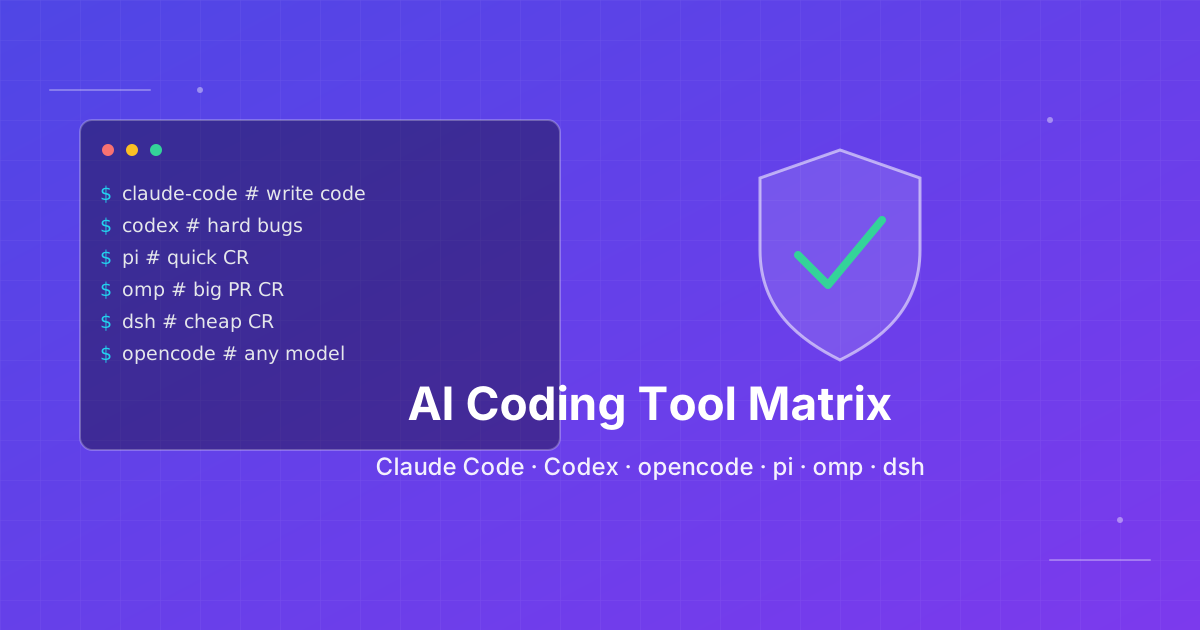
How to pick an AI coding CLI for your repo
Match Claude Code, Codex CLI, OpenCode, Pi, omp, DeepSeek Harness, and Grok Build to the work you actually run. Docs rechecked 2026-10-06.

Skills + Hooks + Plugins: How Anthropic Redefined AI Coding Tool Extensibility
An in-depth analysis of Claude Code's trinity architecture of Skills, Hooks, and Plugins. Explore why this design is more advanced than GitHub Copilot and Cursor, and how it redefines AI coding tool extensibility through open standards.
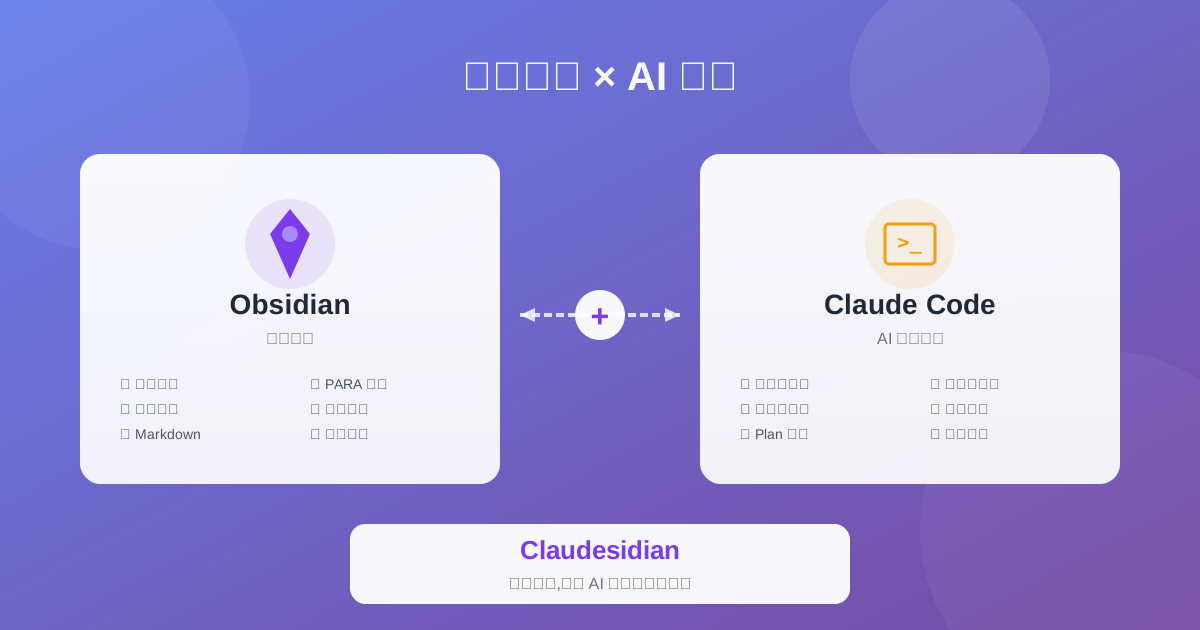
Claudesidian: Transform Obsidian into an AI-Powered Second Brain
Discover Claudesidian, an open-source project that perfectly integrates Obsidian with Claude Code. Built-in PARA method, custom commands, and automated workflows for a complete idea-to-implementation solution.
