
Create a US Apple Account: switch the App Store, keep iCloud signed in
Want an app from the US store? Do not start by signing out of iCloud.
Keep photos, contacts and notes under your existing account. A separate account can handle App Store purchases. Understanding those two roles makes the setup much easier.
The route here is short: prepare your email → register online → complete store setup → add credit when needed. Apple ID is now called Apple Account.
1. Prepare three things before buying an account
- An email address you control long term. Gmail or Outlook works; this guide uses a Gmail address not already used for an Apple Account.
- A phone number that can reliably receive verification codes. Enter its actual country code. If the form supports
+86, you can use your own mainland China number rather than first buying a US number. - Your real account details. Name, date of birth and any requested billing information can matter during later verification or recovery.
Keeping the email and phone under your control avoids uncertainty about who can recover a purchased account. Meet Apple's applicable regional requirements; do not copy a stranger's billing address to claim a tax exemption.
2. Register online and verify email and phone
Open Apple Account and choose Create Your Apple Account.
- Enter your real name and birthday. Choose United States when eligible for that region.
- Enter your Gmail address and create a separate strong password. Your Google password and Apple password are different credentials.
- Enter your accessible phone number with its actual country code.
- Complete the email and phone checks.
- Save your sign-in and recovery details; complete two-factor setup as prompted.
This creates the account. The store may still request additional information before downloads work. Apple's account-creation instructions
3. Switch the store account, not iCloud
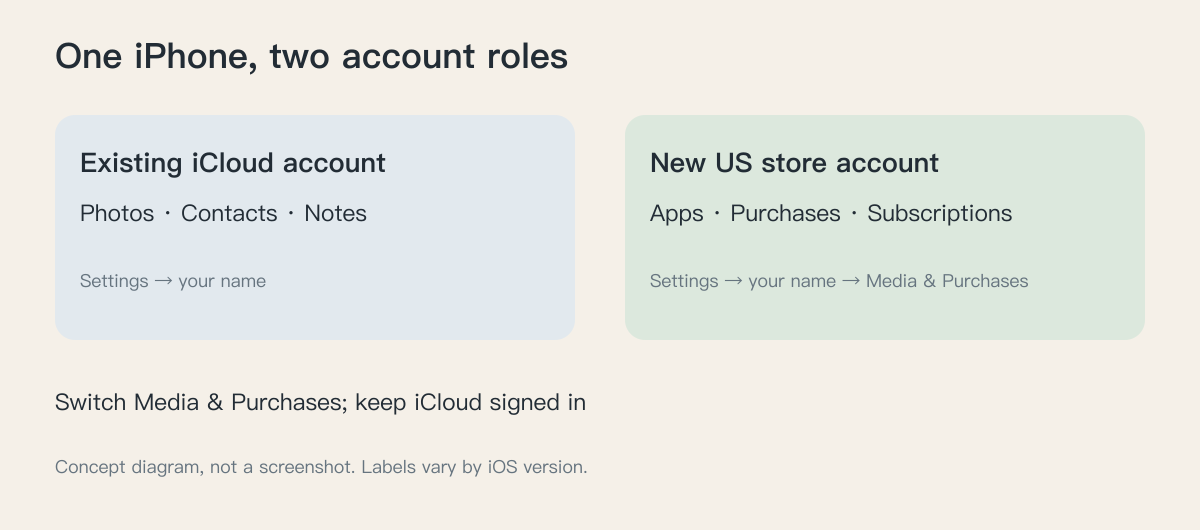
On iPhone, open:
Settings → your name → Media & Purchases → Sign Out
Tap Media & Purchases again and choose to sign in with a different account. Enter the new US account. Labels can vary by iOS version.
Do not use Sign Out at the bottom of the main Apple Account settings screen. That signs out the device's primary account.
Open the App Store, check the account under your profile, and try a free app. Changing the media account can also affect media services such as Apple Music, so check which account owns existing subscriptions. Apple's explanation of the two accounts
“This account has not yet been used in the iTunes Store”?
Select Review, confirm the US region, read the terms, and complete the requested billing details.
Choose None if offered; otherwise supply an accepted payment method. Do not assume every new account can skip a card. Try a free download again after setup. Apple's payment-details instructions
Unsure how the billing address fields work? The US tax-free-state address generator provides examples of Street Address, City, State and ZIP Code. Use them as format references when a Claude, Apple or Google Play payment form asks for a US address. Generated results are test data; enter your actual billing details and check the tax shown at checkout.
4. Need a paid app or subscription? Add credit with a gift card
Check the account works before adding funds.
- Follow this Alipay Apple gift-card tutorial. Select a US-region card usable for App Store purchases. The guide also describes website checkout with an Alipay QR payment if the in-app entry is unavailable.
- Verify the delivery email and purchase only the amount needed.
- Open App Store → profile → Redeem Gift Card or Code.
- Check the signed-in US account before redeeming, then verify its balance.
- Check the final purchase amount and allow for applicable tax.
Gift-card region must match. Balance can pay for supported apps and subscriptions, but some purchases still require a payment method on file. Balance uses · Region restrictions
5. For Claude, separate the purchase account from the sign-in identity
The US App Store account handles downloads and in-app purchases. Sign in with Apple identifies your Claude account. These can be different accounts.
Native iPhone apps use the device's signed-in iCloud identity for Apple sign-in. Switching Media & Purchases does not automatically use the new US account's private relay email. Check the identity in the authorization prompt and record the relay address if you choose Hide My Email. Apple's authentication design
Check the email shown in Claude before paying. Then return to CC in the terminal. For routing, subscription stages and work-history recovery, read Claude Code: before you spend $200, do these six things.
Stuck? Check these three cases
| Problem | Next step |
|---|---|
| “Your account cannot be created at this time” | Check details and codes, update the browser or OS, try working Wi-Fi or cellular data, and retry later. Contact Apple if it persists |
| No None payment option | Meet the account's current payment requirements instead of repeatedly changing regions |
| Changing an existing account to the US | Review balance, subscriptions and Family Sharing first; the separate-account route above does not require changing the original account |
Account-creation troubleshooting · Region-change requirements
This guide references Gimo's registration walkthrough and checks the process against Apple documentation. The graphics are diagrams, not screenshots. Completion time and card-free setup are not guaranteed.
Comments
No comments yet. Be the first to comment!
Related Tools


Related Articles

Claude Code account precautions: before you spend $200, do these six things
Gmail plus Apple private sign-in, Cliproxy residential routing for CC and emulators, IP/DNS checks, gradual upgrades, and history-preserving sign-out. Includes a profile and script.
OpenCode Go in Codex on Windows: Setup, Troubleshooting, and Rollback
Connect OpenCode Go to Codex through the community codex-router project. Check prerequisites, authentication, real tool calls, and rollback.

Obsidian CLI + Codex: Turn Your Vault into an Agent Knowledge Engine
Obsidian CLI gives Codex and other agents a searchable, auditable, link-aware interface to a local Vault, using real cases and reproducible workflows.
